


ThoughtSpot Liveboards are a powerhouse for anyone looking to organise and share data insights effectively. You can pin your most important insights, track trends, and easily share updates with your team.
What makes them even better? Real-time updates and powerful filters that let you zero in on exactly what you need. Whether you’re digging into performance metrics or just trying to get your team on the same page, Liveboards keep your data simple, clear, and ready for action.
What Are ThoughtSpot Liveboards?
Think of Liveboards as your personal data dashboard. They’re a central place where you can pull together answers (visualisations and charts) from your searches and display them in a way that’s organised, interactive, and easy to share. Unlike static dashboards, Liveboards are dynamic, meaning you can customise them on the fly, apply filters, and even collaborate in real time with your team.
How to Get Started with Liveboards
Getting started is straightforward, but there are a few tricks that will help you make the most out of the platform. Let’s break it down.
Accessing Liveboards
Once you’ve conducted a search in ThoughtSpot and found some interesting insights, you’ll want to store and display them for future reference. Navigate to Liveboards through the Insights Menu or use the shortcuts in the top-right menu to go directly to your existing boards.
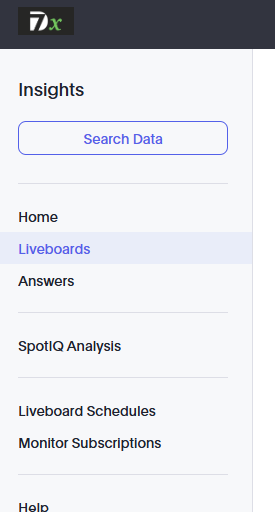
Once there, you can create a new Liveboard or select an existing one to start customising.
Making Liveboards Work for You
The beauty of Liveboards lies in how customisable they are. You can make them look polished and professional, and even better, tailor them to the specific needs of your audience.
Editing and Customising Layouts
Customising your Liveboard starts with layout edits. Drag and drop answers to rearrange them, or resize them to make certain charts or tables stand out. ThoughtSpot makes this super simple with preset sizes or manual adjustments.
But don’t stop there! You can also add tabs across the top of the Liveboard to better organise your data. For instance, one tab could display regional sales data, while another could focus on product performance.

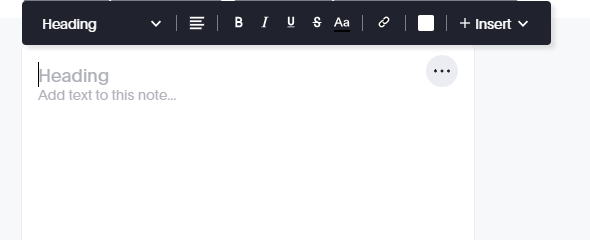
Adding notes is another great feature. These are essentially text boxes you can place anywhere on your Liveboard to provide context or explanations for your charts and visualisations. It’s an easy way to ensure everyone understands the story behind the numbers.
Adding Filters for Dynamic Insights
Filters are where Liveboards truly shine. They allow users to interact with the data directly, changing views and insights on the fly.
For example, you can create a filter for a specific field, like “City” or “Region,” and allow users to select one or multiple values. Filters can also be linked across different data sources, so if you have multiple datasets in your Liveboard, you can create a unified filtering experience.
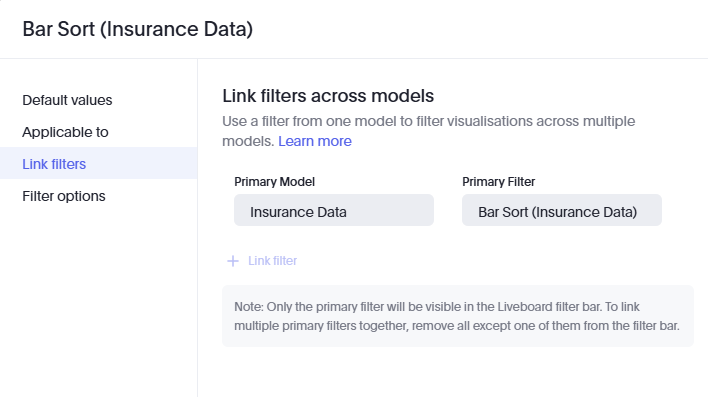
Once set up, these filters ensure that your Liveboard isn’t just a static display—it becomes an interactive tool where users can drill down into the data that matters most to them.
Saving Custom Views for Personalisation
Let’s say you’ve applied some filters and created the perfect view for your needs. Instead of repeating this process every time, you can save it as a Custom View.
Here’s why this is so powerful:
- You can create views tailored to specific teams or users, like a regional manager who only wants to see data for their location.
- Saved views can be either private (just for you) or shared with others, making it easier for teams to collaborate without everyone having to redo the same work.
Building Trust with Verification
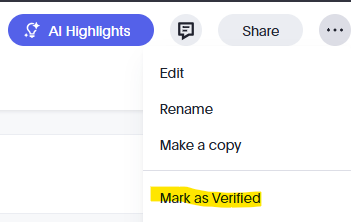
Data accuracy is a major concern in analytics, and that’s why the Mark as Verified feature is so useful. When a Liveboard is verified, it signals to users that the data has been reviewed and approved by your data team. This helps build trust and ensures that people across your organisation are working with reliable insights.
Collaboration and Sharing Made Easy
One of the best things about ThoughtSpot Liveboards is how easy it is to share them.
Automate Sharing with Scheduled Emails
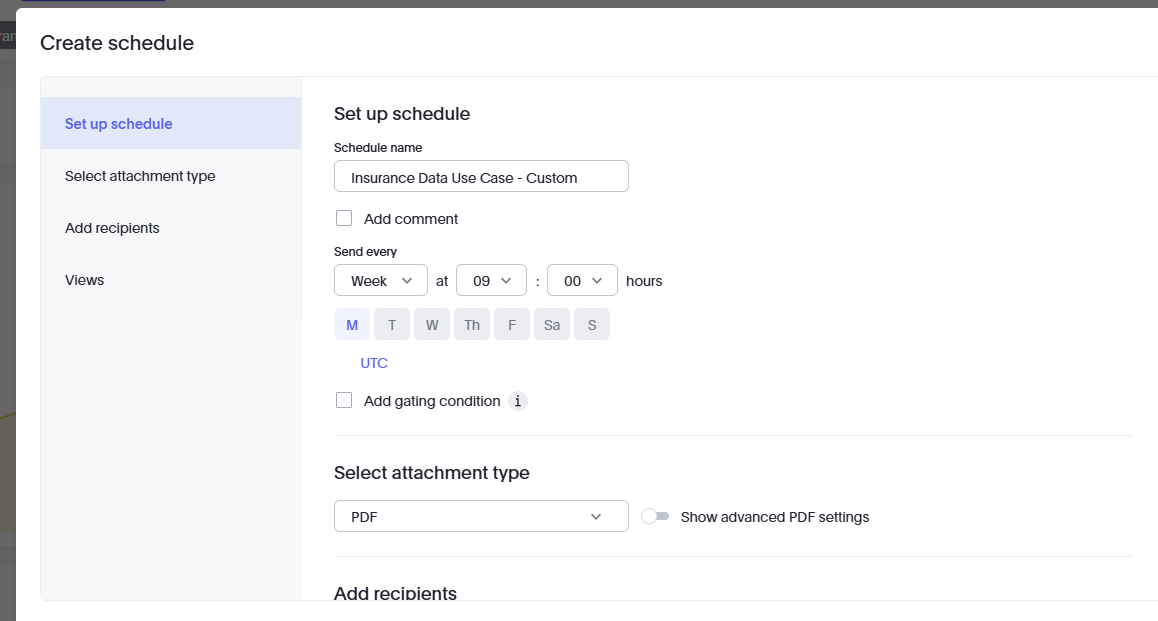
You can set up email schedules to automatically send Liveboard views to your team. Whether it’s a weekly update or a daily performance report, you can choose the frequency and format (PDF, Excel, etc.) to fit your needs.
This means no more manual updates or hunting down insights—your team will have the data they need right in their inbox.
Presenting Insights in Meetings
Need to present your data in a meeting? The Present View mode transforms your Liveboard into a full-screen slideshow, allowing you to walk through your insights one by one. It’s like having a PowerPoint, but directly connected to your live data.
Real-Time Collaboration with Slack and Teams
For teams using Slack or Microsoft Teams, Liveboards integrate seamlessly. You can sync them to your collaboration platform to share updates, get notifications, or discuss insights in real time. It’s a great way to keep everyone on the same page without constantly switching between tools.
Advanced Features for Power Users
Editing with TML (ThoughtSpot Modeling Language)
If you’re looking to take your Liveboard to the next level, TML allows you to edit the underlying code for even greater customisation. This feature is ideal for advanced users who need to fine-tune configurations or integrate Liveboards with other systems.
Best Practices for Using Liveboards
- Keep It Clean and Focused: A cluttered dashboard can overwhelm users. Stick to the essentials and organise your answers logically.
- Leverage Filters: Make your Liveboard interactive by adding relevant filters. This ensures users can explore data in a way that’s meaningful to them.
- Verify Your Data: Use the verification feature to build confidence in your insights.
- Annotate for Clarity: Add notes to explain key metrics or provide context.
- Share Strategically: Use scheduling and collaboration tools to ensure the right people see the right data at the right time.
Why ThoughtSpot Liveboards Are a Must-Have
ThoughtSpot Liveboards are more than just dashboards—they’re a tool for collaboration, exploration, and decision-making. By leveraging their dynamic features, you can make your data work harder and smarter for your organisation.
Ready to supercharge your analytics? Dive into ThoughtSpot Liveboards today and see the difference for yourself.
Speak with the Xperts
At 7Dxperts, we specialise in uncovering the full potential of ThoughtSpot and the modern data stack. Our expertise spans across the most advanced data technologies, including:
- Accelerators for ThoughtSpot: Check out our Dbx2Spot and Snow2Spot solutions to fast-track your ThoughtSpot implementation and make Spotter more accurate .
- Geospatial Analytics: Unlock insights with geospatial data using our Map2Spot accelerator, designed for platforms like #Databricks, #Snowflake, #BigQueryand #Redshift.
- Data Readiness Expertise: We will support you through modernisation, augment with your organisation with a view to handover and partner as advisors over a longer period of time.
Whether you’re just getting started with ThoughtSpot or looking to optimise your analytics strategy, 7Dxperts is here to help you achieve your goals faster and more efficiently.